This portion of the guide assumes you have all of the necessary prerequisites. This section covers how to prepare your SD Card, enter RCM Mode and finally booting into ReiNX itself.
ReiNX CFW
You can either download the latest stable release, or if you are an advanced user you can download the latest nightlies. If one doesn't work, try the other. The installation process remains largely the same. The stable release is recommended for new users.
Open a terminal instance in the fusee-launcher directory. Copy the ReiNX.bin payload to this directory. Plug your Switch into your PC using your USB Type-C cable of choice. Run: sudo python3./fusee-launcher.py./ReiNX.bin If you did everything correctly, you should see the ReiNX splashscreen on your Switch. Instructions: Put the Switch in RCM and connect it to your device. (Insert your jig into right-joycon rail and hold volume-up while. Select one of the example payloads, or upload one. Press 'Do the thing!' On the consent screen that appears, select 'APX' and hit confirm. If APX does not appear.
The below checkboxes are for personal reference to keep you on track as you follow each step.
- Download the latest ReiNX.
- Open the ReiNX zip file, and copy the contents to your SD card:
- ReiNX folder
- sept folder
- ReiNX.bin payload
- hbmenu.nro file
- Copy ReiNX.bin to a safe place on your PC for later use in the Injecting the Payload steps below.
- Create a folder called switch on the root of the sd card, as this is where you will put all of your .nro files (excluding hbmenu.nro) for any homebrew you may want now or in the future.
- Your SD Card should look like this:
From Root, Collapsed
From Root, Fully Expanded - If your SD Card does not match the above, re-read the steps above until everything is correctly in place.
- Safely eject your SD Card and insert the SD Card into your Switch.
Now that you have your SD Card prepared, it is required to enter RCM Mode so you can inject a payload (eg. ReiNX.bin) to the Switch.
Please note that you will need to enter RCM and inject the payload every time you wish to boot your Switch from a completely powered off state, when restarting it will restart into ReiNX automatically, but this is not the case when starting from a powered off state. For a better user experience, we recommend enabling AutoRCM as detailed in Step 3 - Post-Installation.
- Completely power off your Switch
- Hold the the power button for ~3 seconds and selecting 'Turn Off' from the pop-up menu.
- Alternatively hold down the power button for ~15 seconds until the screen completely shuts off.
- Insert the Joycon rail jig into the right-side rail, or otherwise bridge the following pin combinations: 9 and 10, 7 and 10, 1 and 10.
- You can purchase a Joycon rail jig online for cheap.
- Alternatively If you do not have a Joycon rail jig, please refer to this GBAtemp thread for alternate methods.
- Hold down the Volume Up button, and while continuing to hold it press the power button. You may let go of both buttons now.
- You should be greeted with a blank screen indicating that you are now in RCM Mode.
- To confirm, pressing the power button again should not power up the Switch.
- If your Switch powers up, you did not successfully enter RCM Mode. Repeat the steps as necessary until you are in RCM Mode.
- Congratulations! You should now be in RCM Mode and ready to inject the payload.
Please follow the instructions for the payload injection application of your choosing.
You can safely ignore the alternate instructions that do not apply to you.
Download / GitHub link is here.
- Open TegramRCMGUI Navigate to the Settings tab. Click on the Install Driver button.
- This will install the APX driver, which allows your PC to communicate with your Switch.
- Once the driver has been successfully installed, navigate to the Payload tab.
- Click the folder icon, and navigate to where you saved your ReiNX.bin payload on your PC.
- Optional: Click the + button to add it as a Favorite for quick injections.
- Plug your Switch into your PC using your USB Type-C cable of choice.
- You should see a green RCM O.K graphic indicating it is ready to inject the payload like so:
- If not, try restarting TegramRCMGUI or your PC, find a working USB Type-C cable or possibly reinstall the APX driver.
- If you receive the error RC=-50 restart the application and try again.
- Click the Injectpayload button.
- If you did everything correctly, you should see the ReiNX splashscreen on your Switch.
- Congratulations! You are now running ReiNX and may safely unplug your Switch once the splashscreen has faded out.
Download / GitHub link is here.
You’ll need python3 to run this, which you can download here.
- Follow any prerequisite instructions as necessary on the link above page.
- Open the Payloads folder.
- Copy the ReiNX.bin payload to this directory.
- Plug your Switch into your PC using your USB Type-C cable of choice.
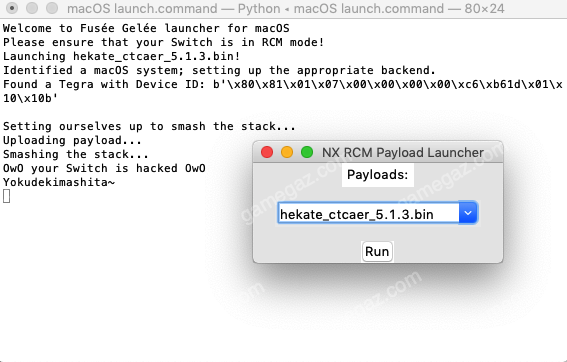
- Double-click on the macOS launch.command file.
- Make sure ReiNX.bin is selected using the arrow buttons (as necessary). It should look like this:
- Click on the Run button.
- If you did everything correctly, you should see the ReiNX splashscreen on your Switch.
- Congratulations! You are now running ReiNX and may safely unplug your Switch once the splashscreen has faded out.
Download / GitHub link is here.
You’ll need python3 to run this, which you can download here.
- Follow any prerequisite instructions as necessary on the link above page.
- Open a terminal instance in the fusee-launcher directory.
- Copy the ReiNX.bin payload to this directory.
- Plug your Switch into your PC using your USB Type-C cable of choice.
- Run:
- If you did everything correctly, you should see the ReiNX splashscreen on your Switch.
- Congratulations! You are now running ReiNX and may safely unplug your Switch once the splashscreen has faded out.
Download / GitHub link is here.
- Download the latest release of ReiNX to your device.
- Extract it using an archive manager such as ZArchiver.
- Open Rekado on your Android device.
- Navigate to the Payloads section of the app and allow it to request storage permissions.
- Press the + button to add a payload and select the ReiNX.bin file inside the folder you extracted in step 2.
- Plug your Switch into your PC using your USB Type-C cable of choice.
- Your Android device will give you a prompt to open Rekado when it detects that the Switch is plugged in, as well as a 'Use by default' checkbox.
- Accept and hit 'OK'.
- Under the Select Injector menu, touch Boot Payload and ReiNX.bin.
- If you did everything correctly, you should see the ReiNX splashscreen on your Switch.
- Congratulations! You are now running ReiNX and may safely unplug your Switch once the splashscreen has faded out.
You should now be up and running with ReiNX. Please proceed for any additional information on what to do next.
This first part of the guide will guide you through the prerequisites to ensure you have everything you need before attempting to install ReiNX onto your Nintendo Switch.
If you are stuck or need help, please see our Troubleshooting page or join our discordhere and ask for help in the relevant channel. Good luck!
A Compatible Nintendo Switch
- Nintendo Switches sold after June 2018 have a high chance of not being compatible with the current exploits / custom firmwares available. These are known as iPatched switches. If you suspect you have a newer Nintendo Switch, please check the Troubleshooting page for more information regarding how to identify if you have a compatible device.
- You will also need a Nintendo Switch on a firmware higher than 1.0. It is recommended to be on the latest compatible firmware. Please refer to the News section on the homepage.
- It is safe to update using the built-in system updater, however if you wish to update your Switch offline without burning your fuses please check the Step 3 - Post-Installation page.
Joycon Rail 'Jig'
In order to enter RCM Mode, you will need a way to bridge pin 10 with either pin 1, 7 or 9 on the Joycon rail. This triggers a simulated press of the 'Tegra' home button, which is necessary in combination with Volume Up button in order to enter RCM Mode. It is important to note this is different than the Home Button on the Joycon itself.
We recommend buying a pre-made jig online for cheap, however please refer to this GBAtemp thread on alternate methods.
A USB Type-C Cable
Does not matter what kind of USB Type-C cable it is, as long as it connects your Switch to your PC or other 'Payload Injector' of choice.
After this, you have the swig executable in the 'C:Program Filesswigwin-2.0.7' directory: 'CProgram Filesswigwin-2.0.7swig' you have to set now the environment variable 'path' to point to this swig exec: add for this the 'C:Program Filesswigwin-2.0.7' path to the 'path'variable according to my example; that is all you need to use swig on.  The latest release is swig-4.0.2. View the release notes. Windows users should download swigwin-4.0.2 which includes a prebuilt executable. Many Unix-like operating systems also include packages of SWIG (e.g. Debian GNU/Linux, FreeBSD, Cygwin). Consult your package management application to see if your operating system does.
We recommend an SD card with at least 32GB of free space available so you can perform NAND backups, which will be covered in Step 3 - Post-Installation. You will also need to decide if you want to use exFAT or FAT32 filesystem on your SD Card. Both have pros and cons as listed below:
exFAT
Pros
- Marginally faster SD card performance
- Allows for large filesizes, which is important if you like installing NSPs directly from your SD card
- Can easily restore a NAND backup without having to reformat the SD card, use a secondary one, or having to split the NAND backup
Cons
- Requires system update to allow exFAT support
- Nintendo's current prfile2 exFAT driver causes rampant corruption on your SD card when using homebrew, using RetroArch, or really any other homebrew application on any CFW.
- This can cause some saved pictures / videos to be unreadable
- Installed games to the SD card can become unplayable until reinstalled
- Homebrew applications can stop working
- Booting altogether might not work until the affected files are replaced
FAT32
Pros
- Does not face the same corruption issues as exFAT
- As such, better homebrew compatibility and system stability
Cons
- Marginally slower SD card performance
- Does not allow for filesizes above 4GB
- This can be worked around when installing games by using your title manager of choice's USB install option
- Cannot currently restore a single-file NAND backup file - requires the user to install a split NAND backup (Hekate can create split NAND by default)
We recommend FAT32 for the most stable experience, however pick whichever filesystem matches your use-case. Just be aware of the corruption issues present with exFAT.
Note: For Windows users, you will need the third party utility GUI Format in order to format large SD cards to FAT32.
If you choose to use exFAT, your Switch will require a system-update to be able to utilize the filesystem. If you do not care about fuses (which you can read more about here) then you may safely update using the Switch's own system updater. If you are an advanced user and would like to update offline while preserving your fuses, please refer to Part 3 - Post-Installation.
Depending on what operating system you are running, you will need to download one of these below to inject the payload to your Switch.
- TegraRCMGUI Windows
Download / GitHub link is here. - Fusée Gelée LaunchermacOS
Download / GitHub link is here.
You’ll need python3 to run this, which you can download here. - Fusèe Launcher Linux and macOS
Download / GitHub link is here.
You’ll need python3 to run this, which you can download here. - Rekado Android
Download / GitHub link is here.
Clean NAND Backup + Dumping Biskeys
Before you make any modifications to your Switch, it is recommended for most users to make a clean NAND backup of your Switch using Hekate in case anything goes wrong. It is also advised to dump your console's biskeys as well.
You can make a NAND backup using hekate.
- Download the latest release of hekate from the link above.
- Extract the files in the zip to the root of your sd card.
- Follow the steps in Step 2 - Download and Install but inject hekate_ctcaer_[version].bin instead of ReiNX.bin
- Once the menu shows up, press on Tools at the top of the screen
- Press Backup eMMC
- Press eMMC BOOT0 & BOOT1 and wait for it to complete, once it's done press Close in the top right.
- Press eMMC RAW GPP, this will create a full backup of the switch eMMC. Wait for it to complete and once it's done press Close in the top right.
- Press Close again and press Home at the top of the screen, Press Power Off and confirm it in the pop-up menu.
- Take out the sd card and plug it into your computer.
- Copy the /backup/ folder on the root of your sd card and put it somewhere safe, using cloud storage is recommended.
Fusee Launcher Mac
If you have all of the necessary prerequisites, you may proceed to the next step.